

Mini PCs pack laptop-class processors — sometimes running at 65 W or more — into boxes smaller than a book. Most of the time they are quiet, but under heavy load the small fan has to work hard, and some units are noisier or hotter than their owners expect. The good news: in most cases, noise and temperatures can be reduced with a few settings and simple habits, without losing much performance. This guide explains what is normal, what is not, and how to fix the most common problems.
Quiet mini PCs we recommend
| Mini PC | Processor | Cooling | Best for |
|---|---|---|---|
| Beelink EQ14 | Intel N150 | Low-power, built-in PSU | Office, bedroom, home server |
| Beelink SER8 | Ryzen 7 8745HS | Vapor chamber + large fan | Quiet performance desktop |
| GEEKOM A9 Max 2026 Edition | Ryzen AI 9 HX 470 | Dual-fan cooling | Quiet Copilot+ work PC |
| Apple Mac mini M6 | Apple M6 | Highly efficient chip | Silent creative work |
| ACEMAGIC Vista V1 | Intel N150 | Low-power, tiny chassis | Quiet budget office PC |
What is normal?
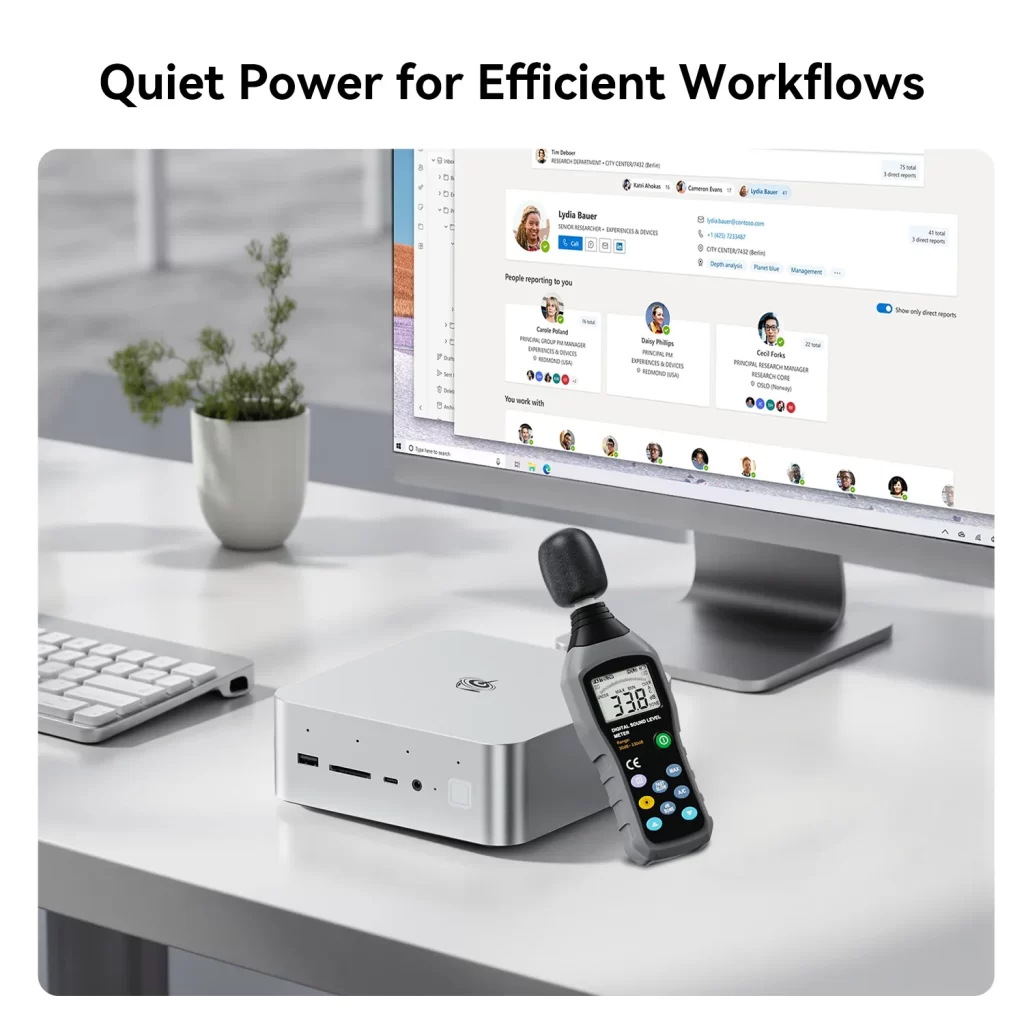
Every mini PC with a fan makes some noise. As a rough guide, measured at about 30–50 cm:
- Below 30 dB(A): practically silent in a normal room. Typical of low-power Intel N-series systems at idle.
- 30–38 dB(A): a soft, steady sound. Normal for most mini PCs during office work and for well-cooled Ryzen and Core models under load.
- 38–45 dB(A): clearly audible. Common for 54–65 W processors during long renders, compiles or gaming.
- Above 45 dB(A): loud. Usually a sign of a high power mode, a blocked air intake, dust or a fan problem.
Temperatures are also higher than many users expect. Modern mobile processors are designed to boost until they reach a temperature or power limit: 85–95 °C under full load is normal for many AMD Ryzen and Intel Core chips, and they protect themselves automatically at about 95–100 °C by reducing clocks. What matters is not the peak temperature but whether performance stays stable and the system does not shut down.
Why is my mini PC loud?
- A high power mode. Many mini PCs ship in a balanced mode, but some run at their maximum power limit by default. More watts means more heat and a faster fan.
- Background activity. Windows updates, antivirus scans, indexing, cloud sync and browser tabs with heavy scripts can keep the processor busy even when you are not using it — especially in the first hours after setup.
- Blocked airflow. Most mini PCs take air in through the bottom or the sides. A soft surface, a cramped cabinet, or a monitor stand that blocks the intake makes the fan spin faster.
- Dust. After months of use, dust on the fan and heatsink fins reduces cooling efficiency.
- Outdated BIOS or drivers. Early BIOS versions sometimes have aggressive fan curves; manufacturers often fix them in later updates.
- Coil whine. A high-pitched buzz that changes with load is often electrical noise from components, not the fan. It is harmless but can be annoying.
Step 1: check what the processor is doing
Open Task Manager (Ctrl + Shift + Esc) and sort by CPU. If the processor is busy while you are idle, wait for updates to finish, pause or reschedule heavy sync and backup jobs, and close resource-hungry tabs. On a new PC, the first day of updates and indexing is often noisier than normal use. To monitor temperatures and fan speed, free tools such as HWiNFO on Windows, or the sensors command on Linux, show live values.
Step 2: choose a quieter power mode in the BIOS
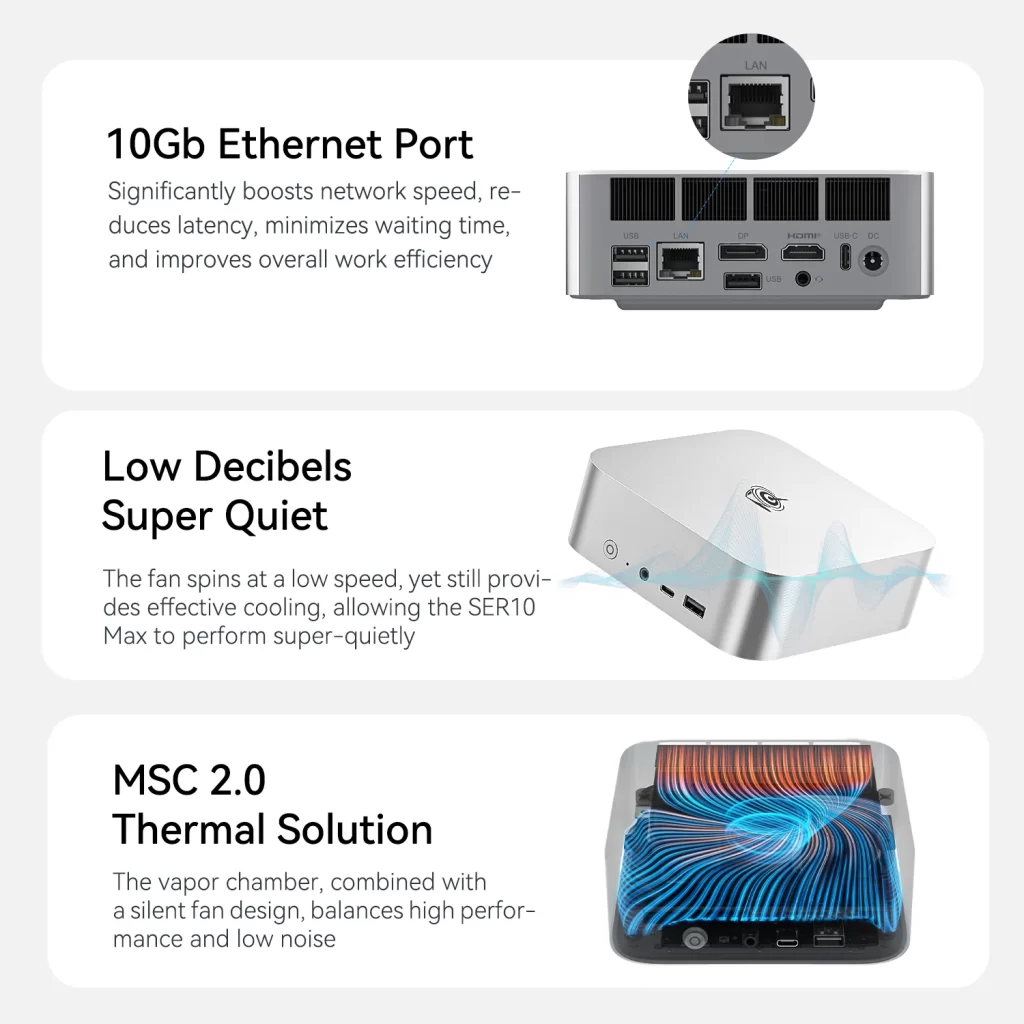
This is the most effective change. Most mini PC BIOS menus offer a power or performance profile — typically named Quiet/Silent, Balanced and Performance — and sometimes a separate fan mode with similar options. Lowering the power limit reduces heat and noise immediately, and the performance loss is often smaller than expected: the last 10–15 W of power usually add only a small percentage of speed.
- How to enter the BIOS: restart and press Delete repeatedly as the PC starts (F2, F7 or Esc on some models). On Windows you can also use Settings › System › Recovery › Advanced startup › UEFI Firmware Settings.
- Where to look: menus called Power, Performance, Advanced, PowerLimit Setting, Fan Mode or, on AMD systems, AMD CBS / PBS › cTDP.
- What to choose: Balanced for everyday use; Quiet for offices, bedrooms and always-on servers; Performance only for long renders or gaming when noise does not matter.
- Save and test: save with F10, run your usual workload and compare noise and performance.
Not every model exposes these options, and some fan modes change little in practice. If your BIOS has no power settings, the Windows options below still help.
Step 3: adjust Windows power settings
- Power mode: Settings › System › Power › Power mode › Best power efficiency or Balanced lowers boost behaviour and fan activity.
- Limit maximum processor state (advanced): in the classic Power Options › Change advanced power settings › Processor power management, setting Maximum processor state to 99% disables turbo boost on many systems. The PC becomes much quieter and cooler, at the cost of peak speed — useful for servers and silent desks.
- Manufacturer utilities: some brands provide their own control apps or hotkeys for performance modes; check the support page of your model.
Step 4: improve airflow and placement
- Place the mini PC on a hard, flat surface — never on a sofa, bed or carpet.
- Leave a few centimetres of free space around the air intakes and the exhaust, usually at the back.
- Avoid closed cabinets without ventilation, or add a small gap or vent.
- If you use the VESA bracket behind a monitor, make sure the intake is not pressed against the monitor and the hot air from the screen is not blowing into the PC.
- Raising the PC slightly with small feet or a stand improves bottom air intake on many models.
Step 5: clean the dust
Every six to twelve months — more often with pets or in dusty rooms — power the PC off, unplug it and clean the vents with a soft brush or short bursts of compressed air, holding the fan still so it does not over-spin. If you are comfortable opening the case, clean the fan and the heatsink fins inside as well. Opening the case is usually allowed, but check your warranty terms first.
Step 6: update the BIOS and drivers
Check your manufacturer’s support page for BIOS updates and read the change notes: fixes for fan curves, power limits and stability are common. Install the latest chipset and graphics drivers from AMD or Intel. Always follow the manufacturer’s instructions when updating a BIOS, keep the PC connected to power, and never interrupt the process.
Heat problems: when to worry
- The PC shuts down or restarts under load.
- Performance drops sharply after a few minutes and stays low.
- The fan is loud even at idle after cleaning and BIOS updates.
- The fan makes clicking, grinding or rattling noises.
- The SSD becomes very hot and slows down during long transfers — a heatsink or better airflow helps.
In these cases, contact the manufacturer’s support with your model, BIOS version and a description of the problem. Many brands offer warranties of one to three years, and fan replacements are a common repair.
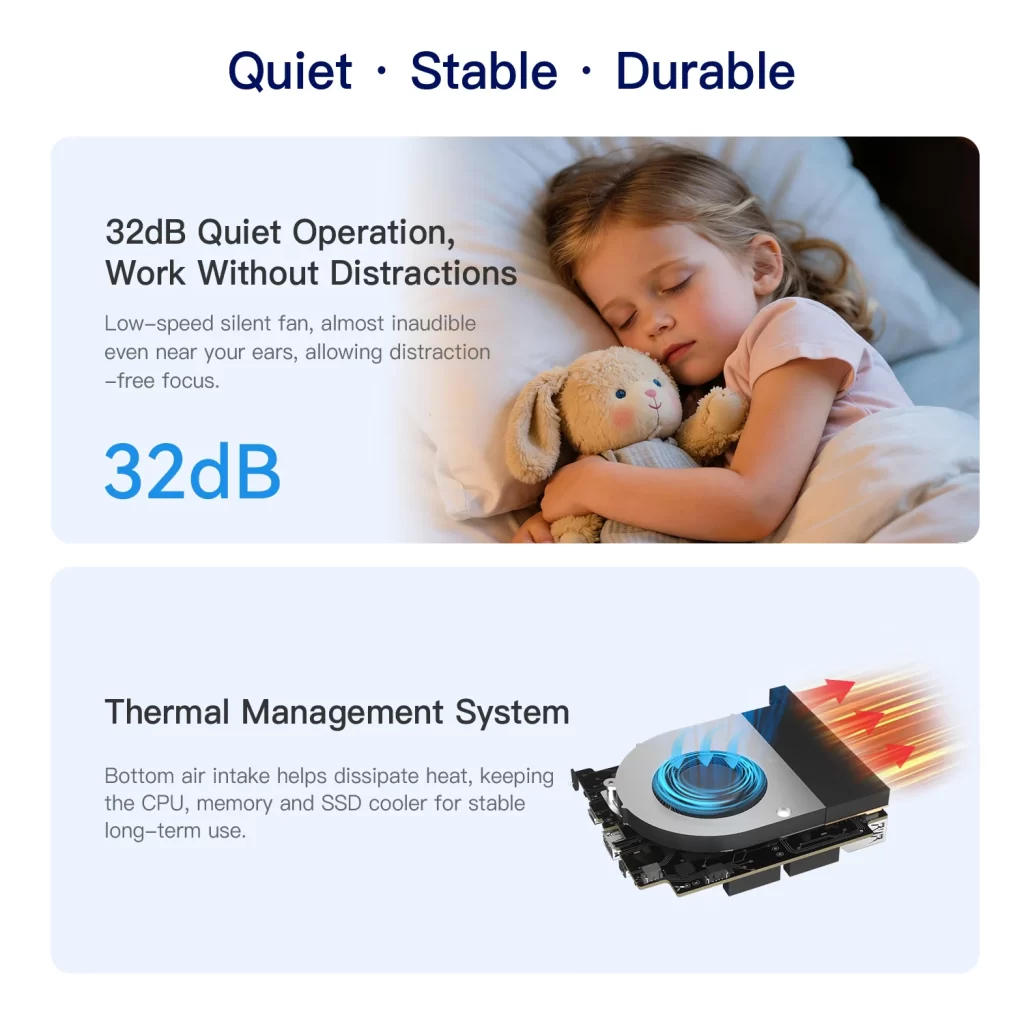
If silence is your priority
Choose the right hardware from the start. Low-power processors such as the Intel N150 run very quietly and suit offices, bedrooms and home servers. For more performance, look for models with large coolers, vapor chambers or well-designed airflow, and check whether the BIOS offers a quiet mode. Fanless mini PCs are completely silent, but they are limited to low-power processors and get warm to the touch. Apple’s Mac mini is also very quiet thanks to its efficient chip. Our reviews always describe ventilation and noise, so you can compare before buying.
Quick checklist
- Check Task Manager for background activity.
- Switch the BIOS power or fan mode to Balanced or Quiet.
- Use Windows Best power efficiency, or limit maximum processor state to 99%.
- Give the PC a hard surface and free space around the vents.
- Clean dust regularly.
- Update the BIOS, chipset and graphics drivers.
- Contact support if the PC shuts down, throttles heavily or the fan makes mechanical noises.
Conclusion
A loud or hot mini PC is rarely a defect. In most cases, a quieter power mode, better placement and a little maintenance bring noise down to a comfortable level, with only a small loss of peak performance. If you are buying, pay as much attention to cooling and power modes as to the processor — and if silence matters most, choose an efficient chip and a model designed to be quiet.
Our 2026 Buying Guides & Deals
Disclaimer: This article is for information purposes only. Specifications, prices, coupons and availability may change at any time or contain errors, so please check them on the manufacturer's official website or store before buying. Some links on this page are affiliate links: if you buy through them we may earn a small commission at no extra cost to you.