
Many mini PCs ship with a 512 GB or 1 TB SSD. That fills up quickly once you add games, video projects or local AI models — a single large language model can take 20 to 100 GB. The good news is that storage is the easiest upgrade on almost any mini PC: you only need a screwdriver, ten minutes and the right drive. This guide explains how to choose a compatible SSD, how to move your system without reinstalling Windows, and how to install it step by step.
Recommended SSDs for mini PCs
| Model | Interface | Read / Write | Capacities | Best for |
|---|---|---|---|---|
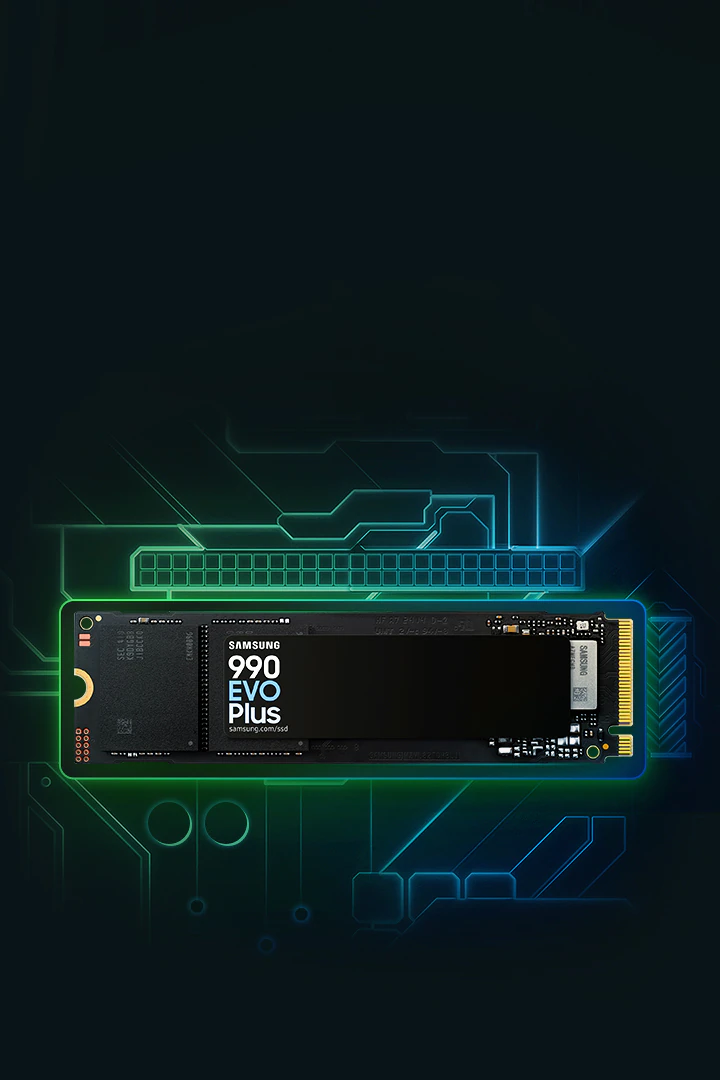
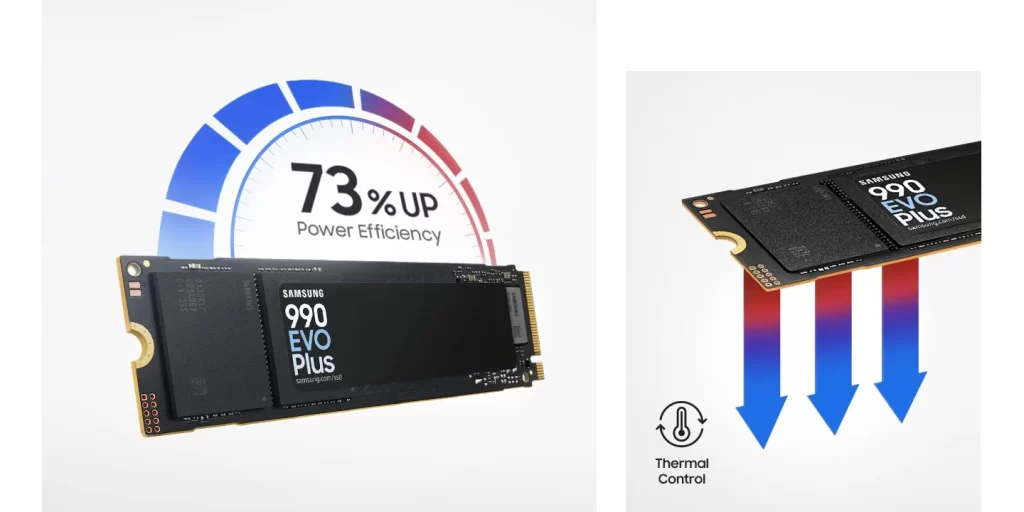
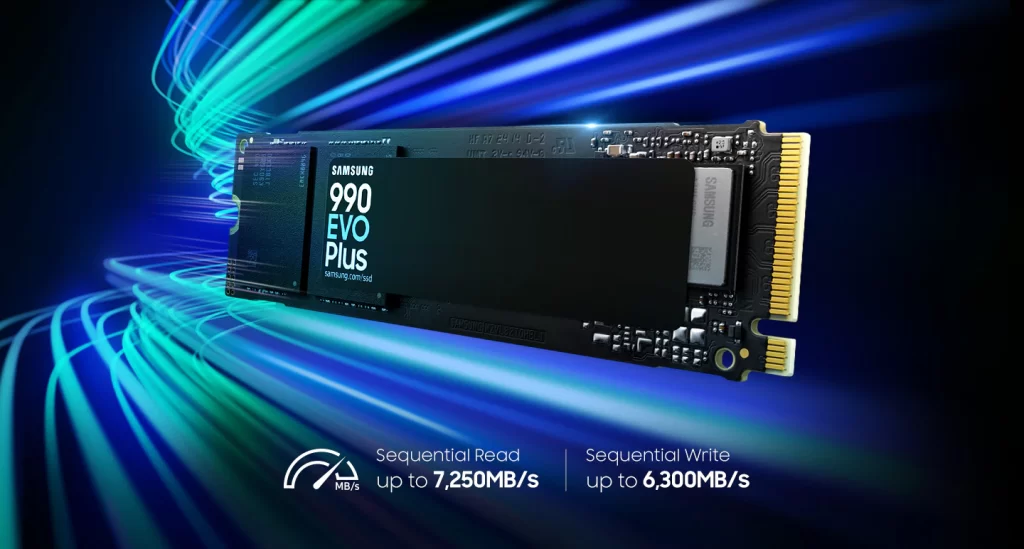
| Samsung 990 EVO Plus | PCIe 4.0 ×4 / 5.0 ×2 | Up to 7,250 / 6,300 MB/s | 1 TB · 2 TB · 4 TB | Cool, efficient all-rounder |
| SANDISK Optimus GX 7100 (WD_BLACK SN7100) | PCIe 4.0 ×4 | Up to 7,250 / 6,900 MB/s | 500 GB · 1 TB · 2 TB · 4 TB | Highest write speed, gaming |
Both drives are single-sided M.2 2280 PCIe 4.0 NVMe SSDs with low power draw — the two features that matter most inside a compact chassis with limited airflow. More drives will be added to our SSD & Storage section.
Step 1: check what your mini PC supports
Open the product page of your mini PC on minis-pc.com and look at the storage rows of the specifications table (Storage, Storage Expansion, M.2). You need to know four things:
- Slot size. Most mini PCs use M.2 2280 (22 mm wide, 80 mm long). Pocket PCs and some ultra-compact models use 2242 or 2230, which need shorter drives.
- Interface and PCIe generation. An NVMe drive needs a slot wired for PCIe. A PCIe 4.0 ×4 slot runs current drives at full speed (around 7,000 MB/s); a PCIe 3.0 ×4 slot limits them to roughly 3,500 MB/s; some secondary slots are ×2 or ×1. A few budget and older models only support SATA M.2 drives, and an NVMe drive will not be detected there.
- Number of slots. Many mini PCs have two M.2 slots — for example, the Beelink SER10 MAX has two M.2 2280 PCIe 4.0 ×4 slots for up to 8 TB, and the ASUS ROG NUC 16 combines one PCIe 4.0 and one PCIe 5.0 slot. With a free slot you can simply add a second drive instead of replacing the original.
- Maximum capacity. Manufacturers usually list a supported maximum per slot (often 2 TB or 4 TB). Larger drives frequently work, but the listed figure is the safe choice.
Some mini PCs cannot be upgraded at all: the Apple Mac mini, for example, uses storage that is not user-replaceable and can only be expanded with external drives.
Step 2: choose capacity and drive type
- 1 TB: operating system, office software and a few games.
- 2 TB: the sweet spot for most users in 2026 — room for a game library, photo and video projects or several local AI models.
- 4 TB: large game collections, 4K video editing and AI work; ideal as a second drive.
- PCIe 4.0 vs PCIe 5.0: PCIe 5.0 drives are faster on paper but consume more power and run hotter. Inside a mini PC a PCIe 4.0 drive is usually the better choice unless your model has a PCIe 5.0 slot with dedicated cooling.
- Single-sided and no heatsink: mini PCs have very little clearance above the M.2 slot; drives with large heatsinks usually do not fit.
Storage prices have been volatile during 2026, so compare the price per terabyte across capacities before buying: the 2 TB model is often the best value.
Step 3: clone or reinstall?
If you are adding a second drive, no migration is needed: install it and create a new volume. If you are replacing the system drive you have two options:
- Clone the existing drive with the free software from the SSD maker (Samsung Data Migration, or Acronis True Image for SANDISK). Connect the new drive through a USB M.2 enclosure, clone, then swap the drives. Everything — Windows, apps and settings — stays as it was.
- Clean install of Windows from a USB stick created with Microsoft’s Media Creation Tool. Windows reactivates automatically on the same mini PC, because the digital licence is linked to the hardware.
Important: if BitLocker or Device Encryption is enabled — as it is by default on many Windows 11 mini PCs — save your recovery key from your Microsoft account before changing drives.
Step 4: install the SSD
- Shut down Windows completely, unplug the power adapter and press the power button for a few seconds to discharge the system.
- Remove the bottom cover. On many mini PCs the screws are under the rubber feet; some models have a tool-less lid or a cable connecting the cover to the board — lift it carefully.
- Touch a metal part of the case to discharge static electricity.
- Locate the free M.2 slot (or remove the old drive), insert the new SSD at about 30°, press it flat and secure it with the screw or latch.
- Put back the thermal pad or metal heat spreader if your mini PC has one; remove any plastic film from the pad.
- Close the cover and switch on. Check in the BIOS/UEFI that the drive is detected and, if you replaced the system drive, that it is first in the boot order.
Step 5: after the upgrade
- Initialise a second drive in Windows Disk Management (GPT) and create a new NTFS volume.
- Install the manufacturer’s tool (Samsung Magician or SANDISK Dashboard) to update the firmware and check drive health.
- Keep TRIM enabled (it is on by default in Windows) and leave about 10–15% of the drive free for the best long-term speed.
- Move large folders — games, video projects, AI models — to the new drive to keep the system drive light.
Common problems
- The drive is not detected: the slot may be SATA-only or the drive is not fully seated. Check the BIOS and reseat the SSD.
- Lower speed than expected: the slot is PCIe 3.0 or uses fewer lanes. This is normal and does not damage the drive.
- BitLocker recovery screen: enter the recovery key saved in your Microsoft account.
- Higher temperatures: make sure the thermal pad touches the drive and that the mini PC’s vents are not blocked.
Conclusion
An SSD upgrade is the simplest way to extend the life of a mini PC. Check the slot size and interface, choose a single-sided PCIe 4.0 NVMe drive with low power consumption, clone your system or add the drive as secondary storage, and you will have more space and the same speed in minutes. Compatible drives also appear in the Compatible upgrades & accessories block of each mini PC page on minis-pc.com.
Recommended drives: Samsung 990 EVO Plus NVMe M.2 SSD PCIe 4.0 ×4 / 5.0 ×2 on minis-pc.com · SANDISK Optimus GX 7100 NVMe M.2 2280 SSD PCIe 4.0 ×4 on minis-pc.com
Our 2026 Buying Guides & Deals
Disclaimer: This article is for information purposes only. Specifications, prices, coupons and availability may change at any time or contain errors, so please check them on the manufacturer's official website or store before buying. Some links on this page are affiliate links: if you buy through them we may earn a small commission at no extra cost to you.