

More memory is one of the most noticeable upgrades for a mini PC: more browser tabs and apps open at once, smoother virtual machines, more memory for the integrated GPU and room for larger local AI models. But unlike storage, not every mini PC can be upgraded — and in 2026 memory has become expensive. This guide explains how to know whether your mini PC can take more RAM, which modules to buy and how to install them.
Upgradeable or soldered? Examples from our catalogue
| Product | Type | Memory | Upgradeable |
|---|---|---|---|
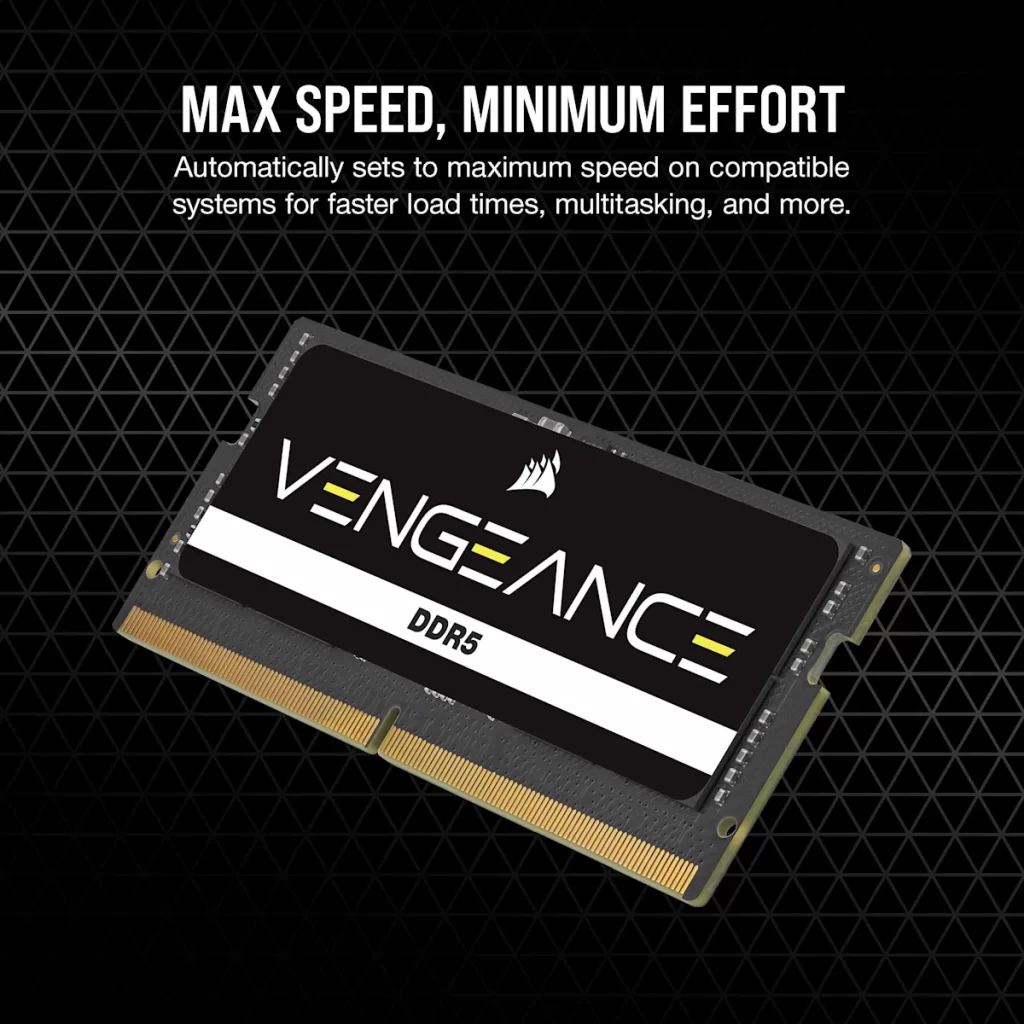
| CORSAIR VENGEANCE DDR5 SODIMM | Memory kit | DDR5-5600 SO-DIMM, 16–96 GB | — |
| Beelink SER10 MAX | Mini PC | 2× DDR5-5600 SO-DIMM | Yes |
| MINISFORUM AI X1 Pro-470 | Mini PC | 2× DDR5-5600 SO-DIMM, up to 128 GB | Yes |
| ASUS ROG NUC 16 | Mini PC | 2× DDR5-6400 CSO-DIMM / SO-DIMM, up to 128 GB | Yes |
| GEEKOM A5 2027 | Mini PC | 2× DDR4 SO-DIMM, up to 64 GB | Yes (DDR4) |
| Beelink EQ14 | Mini PC | 1× DDR4-3200 SO-DIMM, up to 16 GB | Yes (single slot) |
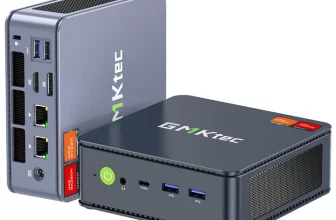
| GMKtec NucBox K13 | Mini PC | 16 GB LPDDR5X on package | No — soldered |
| GMKtec EVO-X2 | Mini PC | LPDDR5X-8000, up to 128 GB | No — soldered |
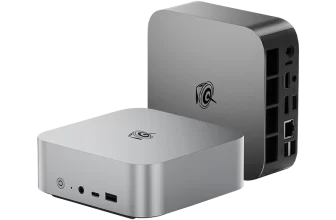
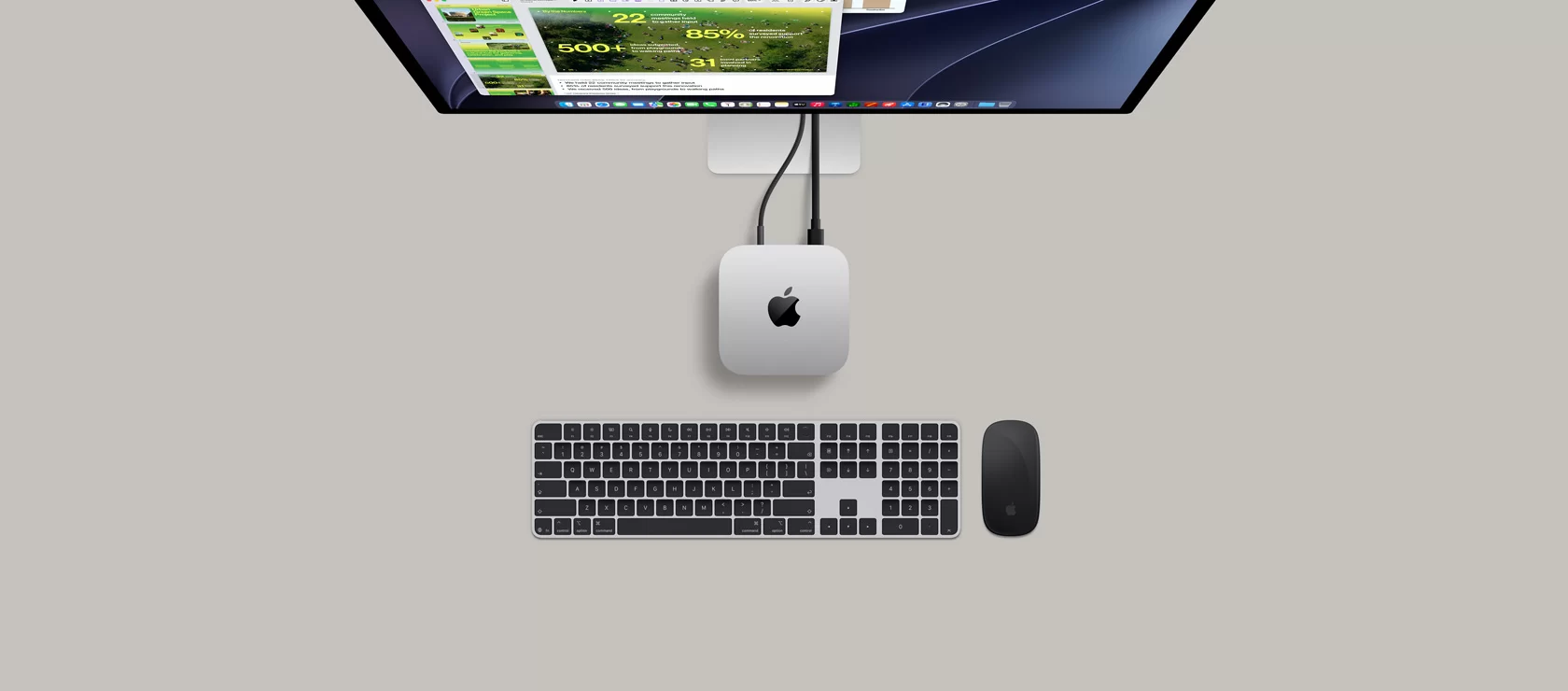
| Apple Mac mini M6 | Mini PC | 16–32 GB unified memory | No — soldered |
Step 1: find out what memory your mini PC uses
Open your mini PC’s page on minis-pc.com and look at the Memory row of the specifications table and the Supported RAM attribute. We always state it clearly as “FULLY USER-UPGRADEABLE (NOT soldered)” or “SOLDERED — non-upgradeable”.
- DDR5 SO-DIMM (most Ryzen AI 300/400, Ryzen 7000/8000 and Intel Core Ultra H mini PCs): two removable modules — upgradeable.
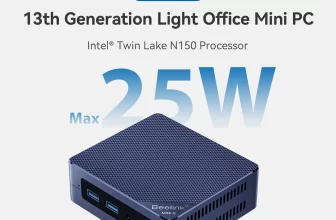
- DDR4 SO-DIMM (many budget Intel N-series and older Ryzen models): upgradeable, but needs DDR4 modules, which are not interchangeable with DDR5.
- LPDDR5 / LPDDR5X (Intel Lunar Lake, AMD Ryzen AI Max, Apple Silicon): soldered to the board or the processor package — cannot be upgraded. Choose the capacity when you buy.
- CSO-DIMM / CAMM (some new high-end systems): removable but newer formats; check which modules the manufacturer supports.
Step 2: choose capacity and speed
- 16 GB: office work, browsing and media. Fine today, tight in a few years.
- 32 GB: the recommended amount for most users in 2026 — heavy multitasking, photo editing, light virtualisation and small local AI models.
- 64 GB: virtual machines, large creative projects and local language models of 20–30 GB, especially on Ryzen AI systems with a strong Radeon 890M GPU.
- 96–128 GB: only on models that officially support it (for example the MINISFORUM AI X1 Pro series or the ASUS ROG NUC 16), for large local AI models.
Buy a kit of two identical modules and install both: dual-channel memory doubles bandwidth, which makes a large difference to integrated graphics and AI performance. For speed, match the mini PC’s official specification (usually DDR5-5600); faster modules simply run at the supported speed. Standard 1.1 V JEDEC modules are the safest choice because mini PC BIOS menus rarely offer memory tuning options.
Step 3: consider the price
Memory prices have risen sharply during 2025–2026 as manufacturers shifted production towards AI data centres. In November 2026 a 32 GB DDR5 SO-DIMM kit costs around US $500 and a 64 GB kit over US $1,000 at brand stores. At these prices it often makes more sense to buy a mini PC that already includes the memory you need — manufacturers’ bundled configurations are frequently cheaper than upgrading later. If you do upgrade, keep the original modules: they can be sold or used in another computer.
Step 4: install the modules
- Shut down Windows, unplug the power adapter and press the power button to discharge the system.
- Open the bottom cover (screws are often under the rubber feet) and touch a metal part of the case to discharge static electricity.
- Release the two side clips of each existing module; it will pop up at an angle. Remove it.
- Insert the new module at about 30° with the notch aligned, then press it down until both clips lock. Repeat for the second slot.
- Close the cover and switch on. The first boot can take up to a minute with a black screen while the system trains the new memory — this is normal.
- Check the installed capacity and speed in Windows Task Manager (Performance → Memory).
Common problems
- No image after installing: wait a minute for memory training; if it still fails, reseat the modules firmly.
- Only half the capacity detected: one module is not fully seated or is faulty.
- Lower speed than rated: the mini PC runs the memory at its own supported maximum. This is expected.
- Integrated GPU memory: on AMD systems you can usually raise the memory reserved for graphics in the BIOS after an upgrade, which helps games and local AI.
Conclusion
If your mini PC has DDR5 or DDR4 SO-DIMM slots, a memory upgrade takes ten minutes and can extend its useful life by years. If it uses soldered LPDDR5X, choose the right capacity at purchase — and with 2026 memory prices, compare the cost of an upgrade with a better-equipped configuration before deciding. Compatible memory appears automatically in the Compatible upgrades & accessories block of every upgradeable mini PC on minis-pc.com.
Our 2026 Buying Guides & Deals
Disclaimer: This article is for information purposes only. Specifications, prices, coupons and availability may change at any time or contain errors, so please check them on the manufacturer's official website or store before buying. Some links on this page are affiliate links: if you buy through them we may earn a small commission at no extra cost to you.