
Look at the back of a modern mini PC and you will find a row of USB-C ports that look identical but behave very differently. One might be a simple 10 Gbps USB port, another a 40 Gbps USB4 port that can drive two monitors and an external graphics card, and some models add an OCuLink port that looks like nothing else. Choosing the right mini PC — and the right dock, SSD enclosure or eGPU — depends on understanding these differences. This guide explains them in plain language.
Quick comparison
| Connection | Maximum speed | PCIe for eGPU / SSD | Display | Power | Hot-plug |
|---|---|---|---|---|---|
| USB-C 3.2 Gen 2 | 10 Gbps | No | Optional (DP Alt Mode) | Optional (PD) | Yes |
| USB4 (40 Gbps) | 40 Gbps | Yes — about PCIe 3.0 ×4 | Yes | Usually (PD) | Yes |
| Thunderbolt 4 | 40 Gbps | Yes — about PCIe 3.0 ×4 | Yes (two 4K) | Yes (PD) | Yes |
| USB4 v2 / Thunderbolt 5 | 80 Gbps (up to 120 Gbps one-way) | Yes — about PCIe 4.0 ×4 | Yes (up to three 4K / 8K) | Yes (up to 240 W) | Yes |
| OCuLink (PCIe 4.0 ×4) | 64 Gbps | Direct PCIe 4.0 ×4 | No | No | No |
Speeds are maximum link rates; real-world throughput is lower because of protocol overhead. “PCIe” is the bandwidth available for devices such as external graphics cards and fast SSDs.
USB-C is a shape, not a speed
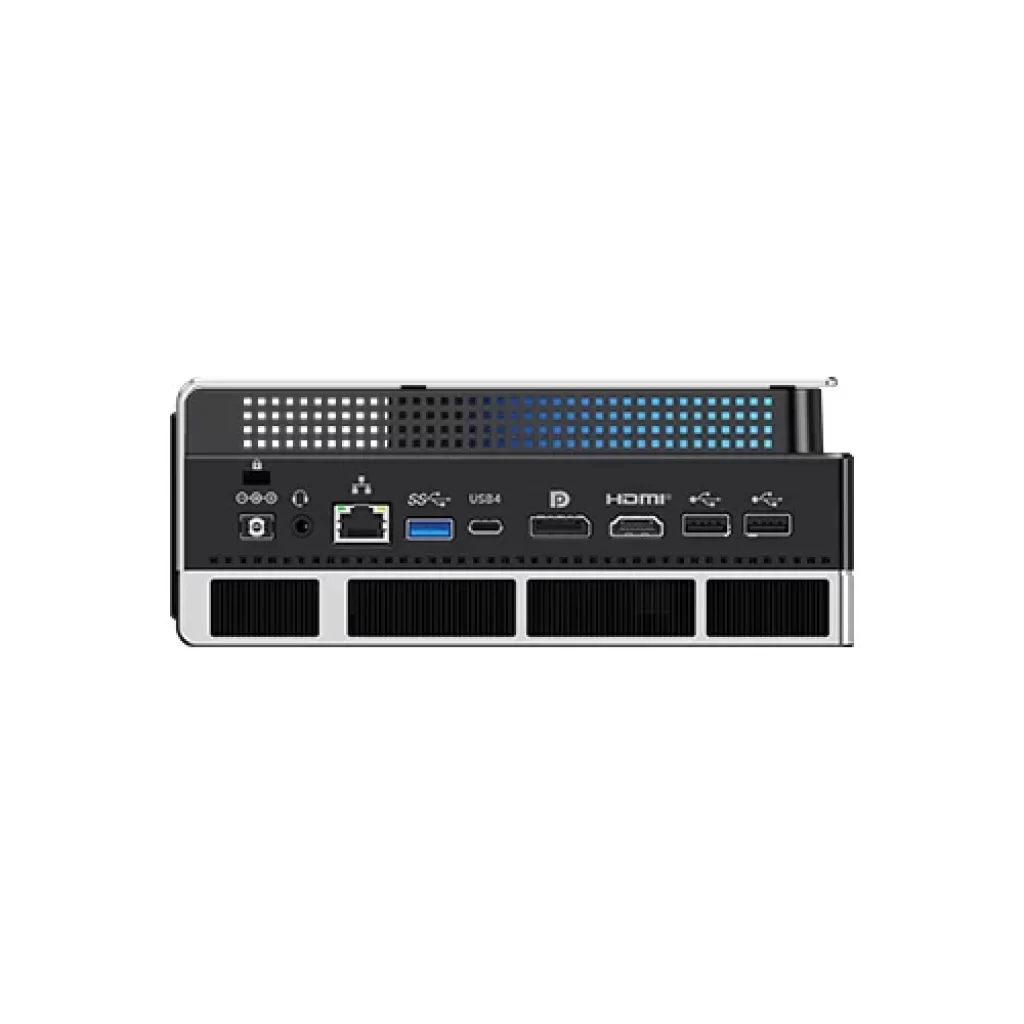
USB-C only describes the connector. Behind it can be USB 2.0 at 480 Mbps, USB 3.2 at 10 or 20 Gbps, USB4, Thunderbolt or even just a power input. Manufacturers usually mark fast ports with a small icon — a lightning bolt for Thunderbolt, “40” or “80” for USB4 — but not always, so check the specification table of each mini PC. In our reviews we list exactly what each port supports.
USB 3.2: everyday ports
USB 3.2 Gen 2 ports (10 Gbps) are ideal for keyboards, mice, flash drives and most external SSDs, which in practice reach about 1,000 MB/s on these ports. Some USB-C 3.2 ports also support DisplayPort output and Power Delivery, which is useful for a portable monitor. They cannot connect an external graphics card.
USB4 and Thunderbolt 4: 40 Gbps
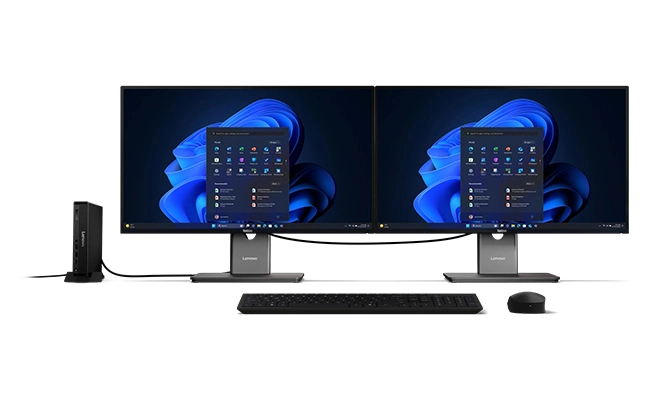
USB4 at 40 Gbps and Thunderbolt 4 share the same underlying technology. Both carry data, video and PCIe over one cable, so a single port can drive one or two monitors, connect a fast NVMe enclosure at up to about 3,000–3,800 MB/s, charge devices and connect a docking station or an external GPU. Thunderbolt 4 guarantees a minimum feature set (two 4K displays, PCIe, wake from sleep and certified cables), while USB4 features depend on the manufacturer — which is why reading the port description matters. In mini PCs, AMD systems usually have USB4 and Intel systems often Thunderbolt 4; in practice they are compatible with the same docks and enclosures.
The limitation for external graphics cards is the PCIe bandwidth: roughly the equivalent of PCIe 3.0 ×4. A mid-range card loses relatively little performance, but a high-end card loses more, especially at lower resolutions.
USB4 v2 and Thunderbolt 5: 80 Gbps
The new generation doubles the speed to 80 Gbps in both directions, and can boost to 120 Gbps in one direction for high-resolution displays. PCIe bandwidth roughly doubles as well, to about PCIe 4.0 ×4, which makes external SSDs and graphics cards much faster, and Power Delivery reaches up to 240 W. Mini PCs with 80 Gbps ports are still rare — the MINISFORUM MS-S1 MAX is one of the first, with two USB4 v2 ports — but they will become more common in 2027. To use the full speed you need 80 Gbps docks, enclosures and certified cables; older 40 Gbps devices still work at their own speed.
OCuLink: the fastest way to add a graphics card
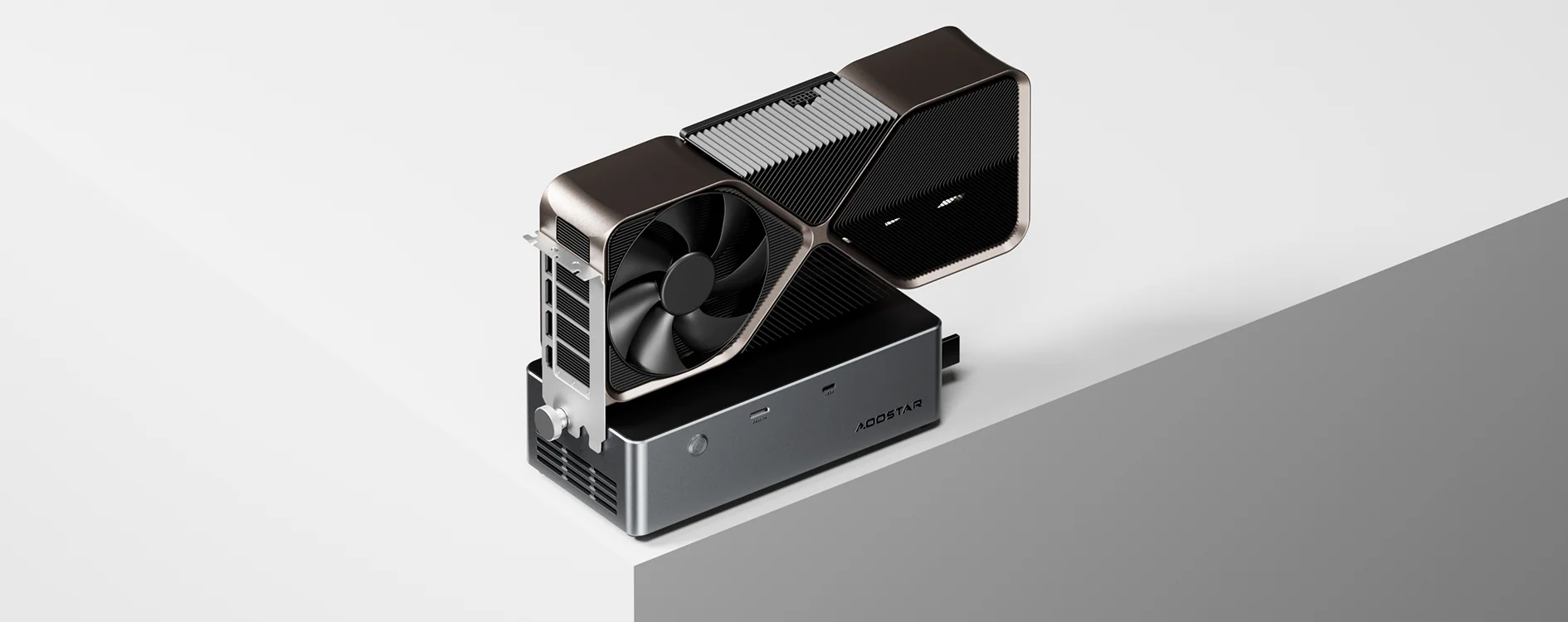
OCuLink is not a USB standard at all. It is an external connector that carries PCIe 4.0 ×4 directly from the processor, with no protocol conversion. That gives it about 64 Gbps of bandwidth and lower latency than USB4, so a desktop graphics card in an OCuLink dock performs noticeably closer to its desktop results. The trade-offs:
- No display, data or power on the same cable — it is PCIe only. The dock needs its own power supply, and you connect monitors to the graphics card.
- Not hot-pluggable. Connect or disconnect the dock only with the PC switched off.
- Less common. Only some mini PCs have an OCuLink port; on a few models it is offered through an M.2 adapter that uses one of the SSD slots.
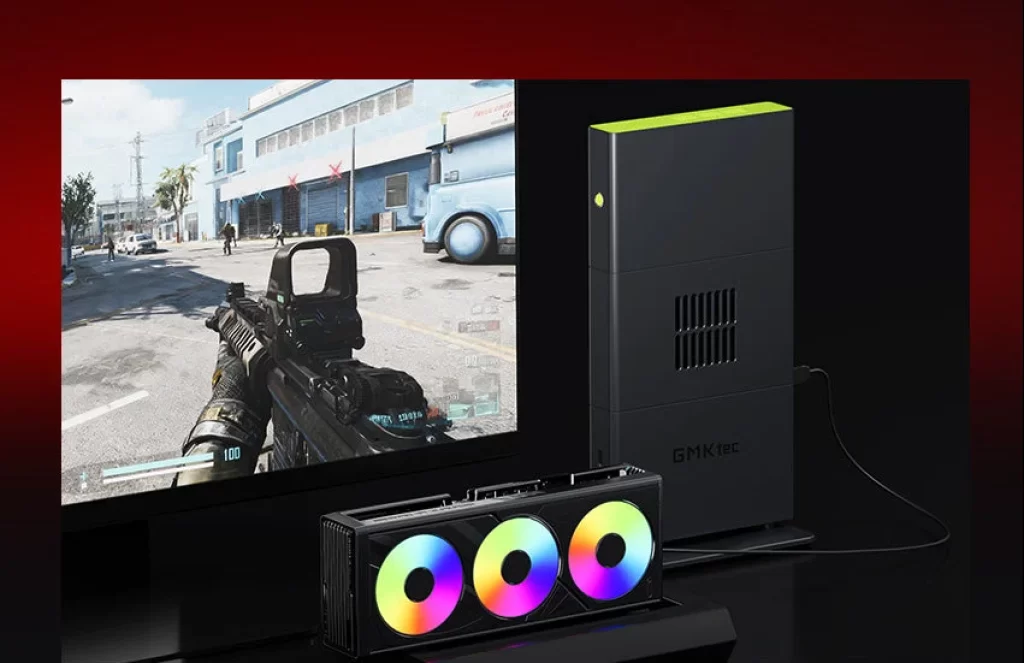
Docks such as the AOOSTAR AG02 combine OCuLink and USB4 inputs, so they can be used with either type of mini PC. Our external GPU guide compares the options in detail.
What do you actually need?
- Office, study and media: USB 3.2 ports and HDMI/DisplayPort are enough. USB4 is a nice extra for a single-cable monitor or dock.
- Multiple monitors on one cable, or a docking station: USB4 or Thunderbolt 4.
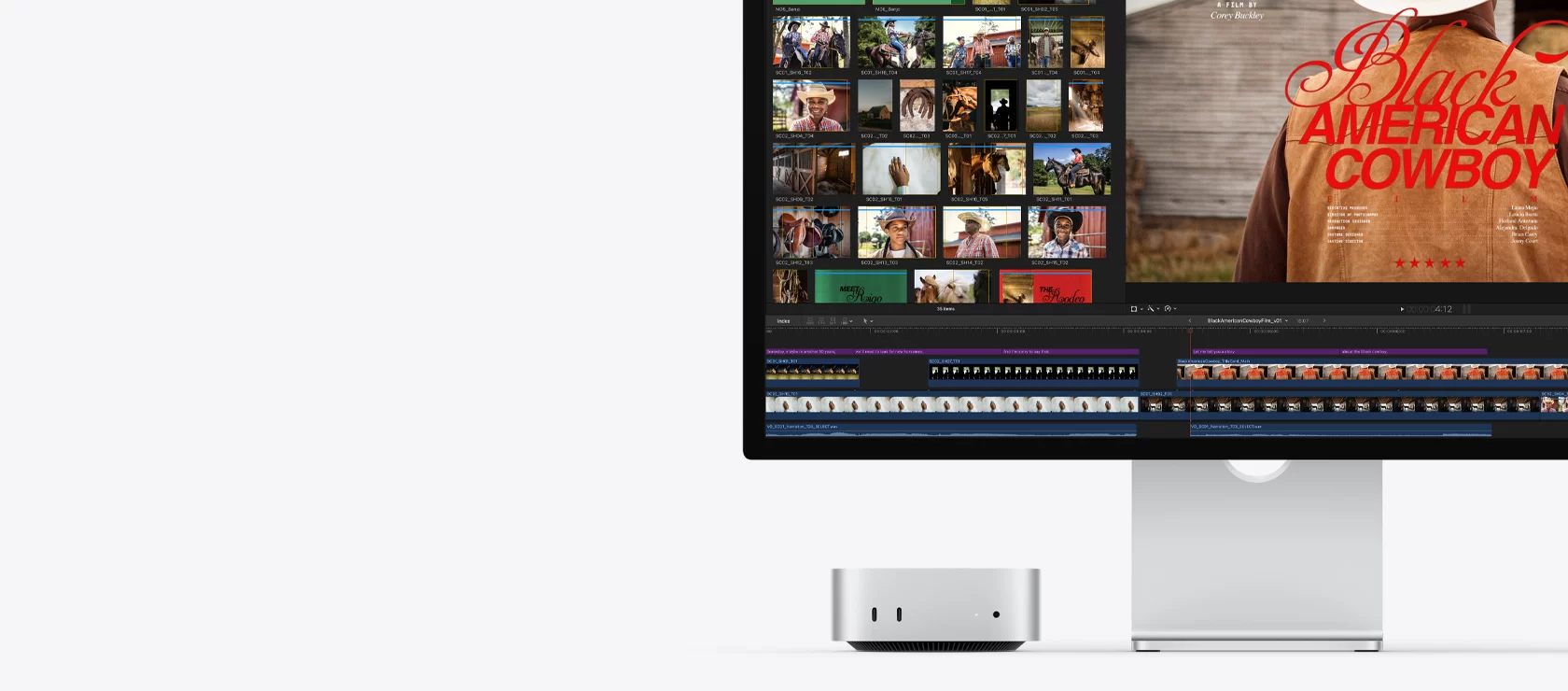
- Fast external storage for video editing: USB4/Thunderbolt 4 for NVMe enclosures at up to about 3,800 MB/s; USB4 v2/Thunderbolt 5 for twice that.
- An external graphics card for gaming or AI: OCuLink for the best performance; USB4 for convenience and hot-plugging.
- Future-proofing: USB4 v2 / Thunderbolt 5 if you plan to keep the PC for many years and use high-speed peripherals.
Mini PCs with fast ports
| Mini PC | Processor | Fast ports | Best for |
|---|---|---|---|
| MINISFORUM MS-S1 MAX | Ryzen AI Max+ 395 | 2× USB4 v2 (80 Gbps) + 2× USB4 | Fastest storage and docks |
| GMKtec NucBox K8 Plus | Ryzen 7 8845HS | 2× USB4 + OCuLink | Affordable eGPU gaming |
| ACEMAGIC F5A | Ryzen AI 9 HX 370 | USB4 + OCuLink | Copilot+ PC with eGPU option |
| Beelink EQi | Intel Core 3 304 | 2× Thunderbolt 4 | Docks, displays and fast NAS |
| Apple Mac mini M6 | Apple M6 | 3× Thunderbolt 4 | Creative work with fast storage |
| Bosgame M4 | Ryzen 7 8745HS | USB4 + OCuLink | Budget OCuLink gaming |
Cables matter
Many problems with fast ports are caused by cables. A cheap USB-C charging cable may only support USB 2.0 data. For USB4 and Thunderbolt, use cables marked 40 Gbps (or 80 Gbps for the new generation) and keep them short — passive 40 Gbps cables are usually limited to about 0.8–1 m. For OCuLink, use the cable supplied with the dock or a good-quality replacement of the same type.
Conclusion
For most users, a mini PC with at least one USB4 or Thunderbolt 4 port offers the best balance: one cable for displays, docks, fast storage and even an external graphics card. Gamers and AI users who plan to add a desktop graphics card should prioritise OCuLink. And if you want a machine that will stay current for years, look for the new 80 Gbps USB4 v2 and Thunderbolt 5 ports.
Our 2026 Buying Guides & Deals
Disclaimer: This article is for information purposes only. Specifications, prices, coupons and availability may change at any time or contain errors, so please check them on the manufacturer's official website or store before buying. Some links on this page are affiliate links: if you buy through them we may earn a small commission at no extra cost to you.